All Specialty Bracing products are available to add to Patient Agreements and submit electronically to the Insurance Bracing Team. Follow the workflow below for adding Specialty Bracing products to a Patient Agreement:
Create the Patient Agreement following the standard process, reference New PA Guide as needed.
Adding an OTS Specialty Brace Product:
Start typing in the SKU or Product Name as select Search.
A modal will open to select the appropriate SKU, once selected the product will appear to choose Involved Side, Self Pay/TOS, Fulfill From and Billing Channel. All OTS Specialty products should Fulfill From Drop Ship if the product is not being dispensed at the time of service. The Billing Channel should be set to Specialty Bracing when the product is being sent to the Insurance channel for Prior Authorization.
Adding a Custom Specialty Brace Product:
Type in the Custom Product Name and select Search. A modal will appear to select Involved Side, Self-Pay/TOS and Billing Channel. All custom products default to Fulfill From Drop Ship. The Billing Channel selected is Specialty Bracing.
NOTE: A Custom Defiance Product has additional fields to enter Custom Attributes. It’s recommended to utilize attributes on the Custom Measurement Form uploaded on the claim instead of the attributes on the Product.
Adding Attachments:
Upload documents (Ex. Patient Measurements, Chart Notes, and Letter of Medical Necessity.)
Adding Accessory Products & Notes:
Reparel Knee Sleeves:
Reparel Knee Sleeves need to be listed on the prescription and included on the PA for billing all OTS and Custom Specialty Brace Products.
Custom Specialty Brace Products:
All Accessory Products besides the Reparel Knee Sleeves should be selected on the Custom Product Measuring sheet that is uploaded and attached to the PA.
OTS Specialty Brace Products:
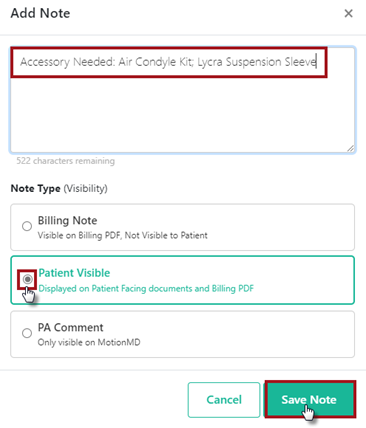
All Accessory Products besides the Reparel Knee Sleeves should be included as a Note on the PA. Select Patient Visible checkbox > Save Note.
In the Notes section type additional communication and accessory product requests. Select Patient Visible checkbox > Save Note.
Submit Claim to Billing:
Complete all billing requirements on Patient Agreement and Submit to Billing. The PA status will update to Awaiting Billing and Received.
Tracking and Monitor Authorization:
After billing submission, Track progress on Pre-Authorization status and shipping via Beacons
Alerts/Notifications:
To submit a Specialty Bracing claim to billing, each Inventory Location is required to have a Specialty Bracing account number set. If this account number is missing, the user will see the alert below. To resolve, submit a help ticket for further assistance.
***PRINTABLE PDF ATTACHED***