Once all billing requirements have been met, the claim(s) are ready to be billed. Follow the steps below to submit a claim to billing with the exception of Special Billing/Third Party claims. All Special Billing/Third Party claims should follow the Submit Claim to Special Billing or Third Party workflow.
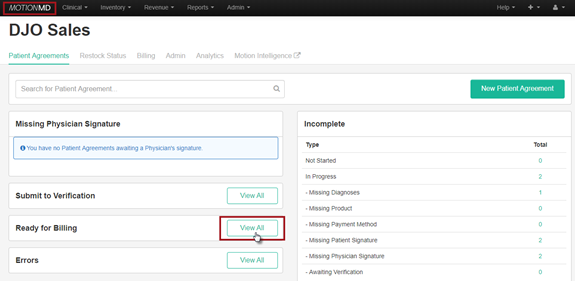
On the MotionMD Dashboard, go to Ready for Billing and select View All:
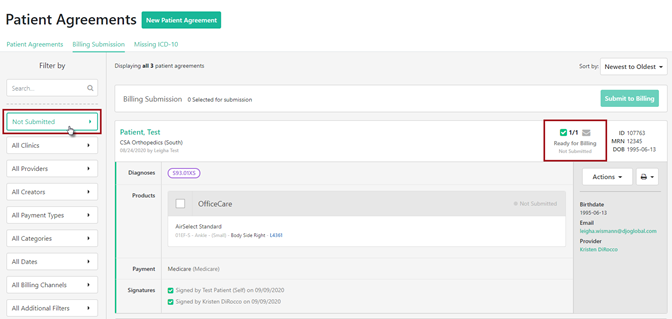
Once in the Billing Submission tab, it will auto-default to Not Submitted claims. Utilize the filters to search for specific claim types as needed.
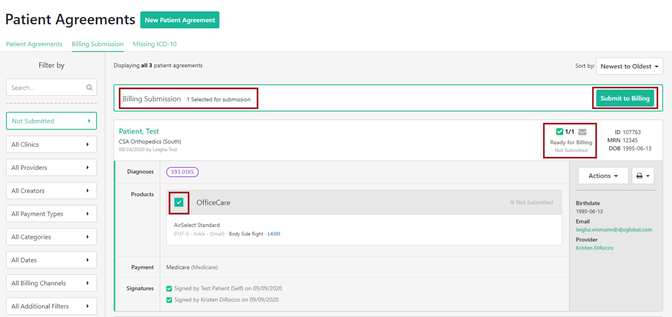
After reviewing the claim, select each claim for billing submission. To select claim(s), check the box in the product section by the billing channel. Once all claim(s) have been chosen, the user will select Submit to Billing.
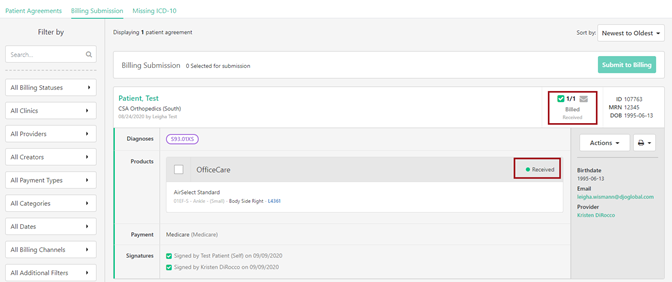
Once the PA has been submitted successfully, a Received status will show on the Billing Submissions page.
Note: If you receive an Error, Document Generation Failed or Transmission Failed status, please reach out to MotionMD Help Support for further assistance.
**PRINTABLE PDF AVAILABLE**