The ability to create and add a Custom Form is a new tier feature available in MotionMD for customers on the Pro tier. Once enabled, a user can select and add a Custom Form to a Patient Agreement (PA). The steps below outline how to add a Custom Form.
Select the Custom Forms button under the Attachments section.

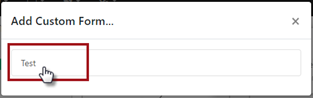
A display modal will appear providing a list of all custom form options. Select the custom form to complete.
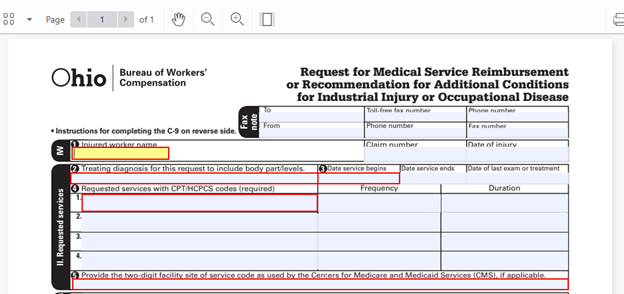
The Custom Form will open in a modal. If the form requires data fields, those fields will be highlighted in RED for the user to complete.
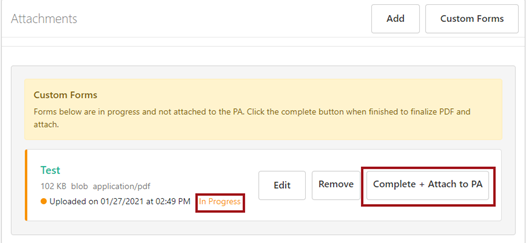
The Custom Form will show as In Progress status under the Attachments section. The form can be Edited and Saved as many times as needed until complete. Once the form is determined to be complete:
Select Complete + Attach to PA to finalize the Custom Form.
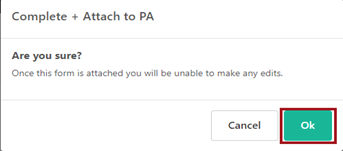
A modal will display asking to confirm the upload by selecting the Ok button. Selecting Cancel keeps the Custom Form in the In Progress status.
The Custom Form has been successfully attached when the document displays as Uploaded with the Date/Time Stamp. Select the Add button to add any other additional attachments or the Custom Forms button to start a new Custom Form.

**PRINTABLE PDF AVAILABLE**